At a glance: the 6 best tablets for PDFs
| # | Tablet | Display | Stylus | Best for | Price | Rating | |
|---|---|---|---|---|---|---|---|
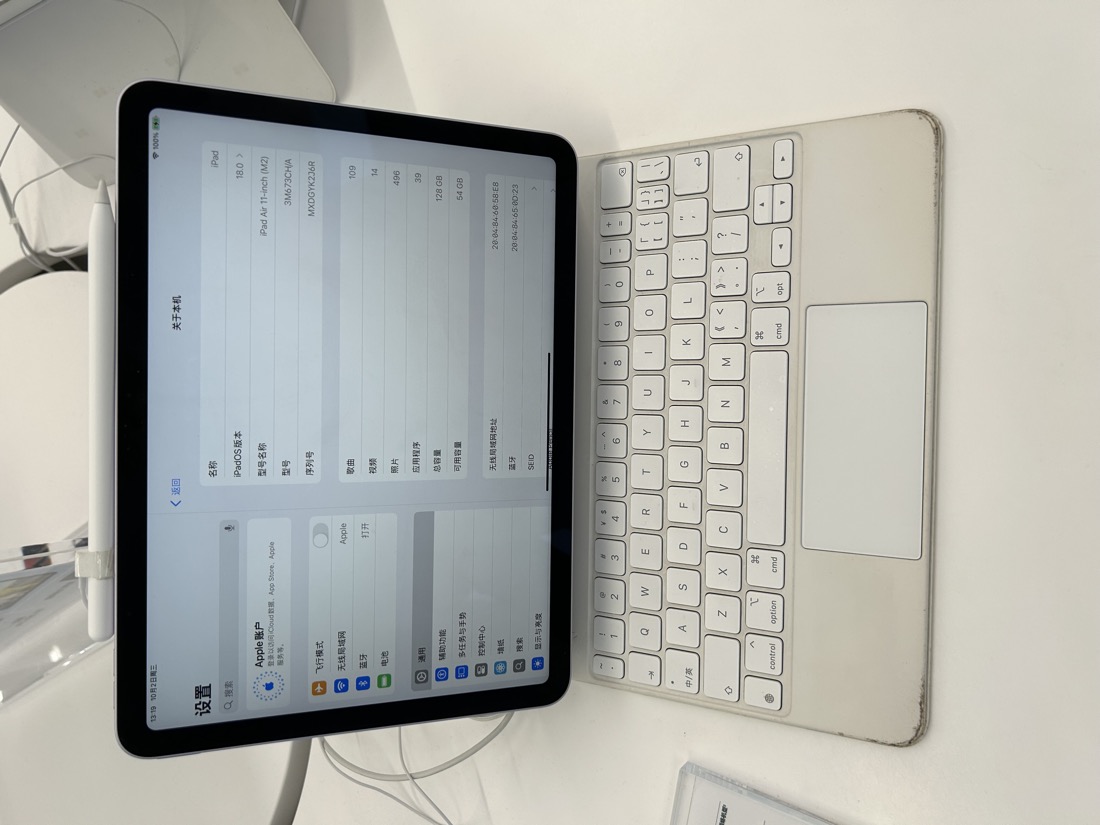
| 1 | iPad Air (M2) | 11″ LCD, 60Hz | Apple Pencil Pro | Best overall | $$$ | ★★★★★ 4.9 | Check price |
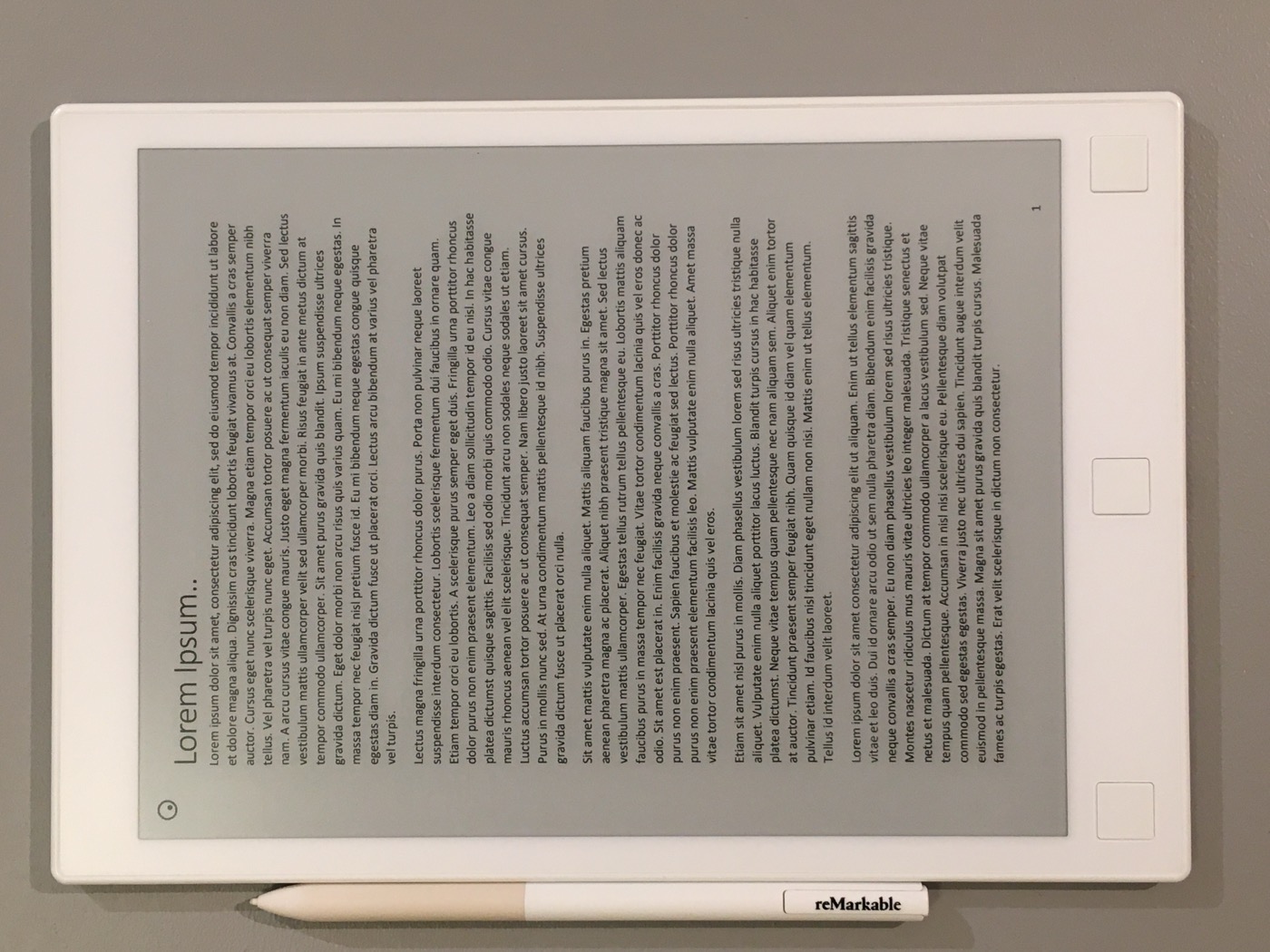
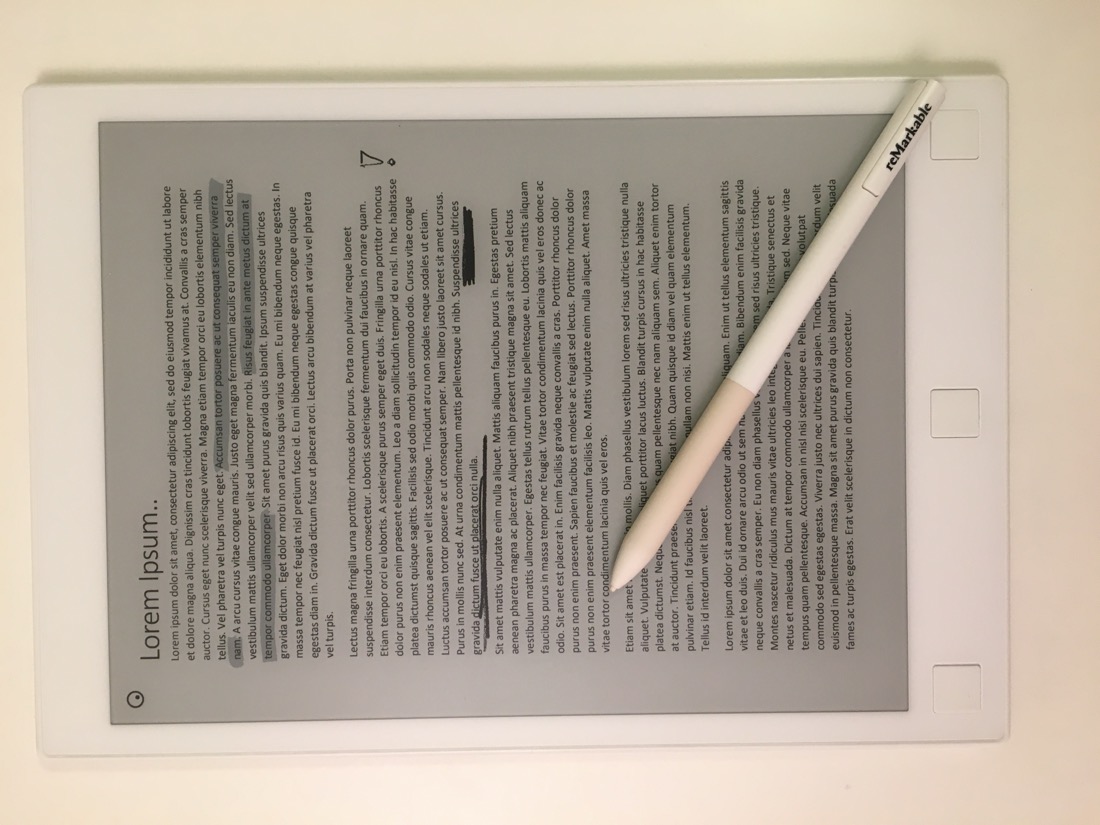
| 2 | reMarkable 2 | 10.3″ E-ink | Included | Focus / paper feel | $$$ | ★★★★½ 4.6 | Check price |
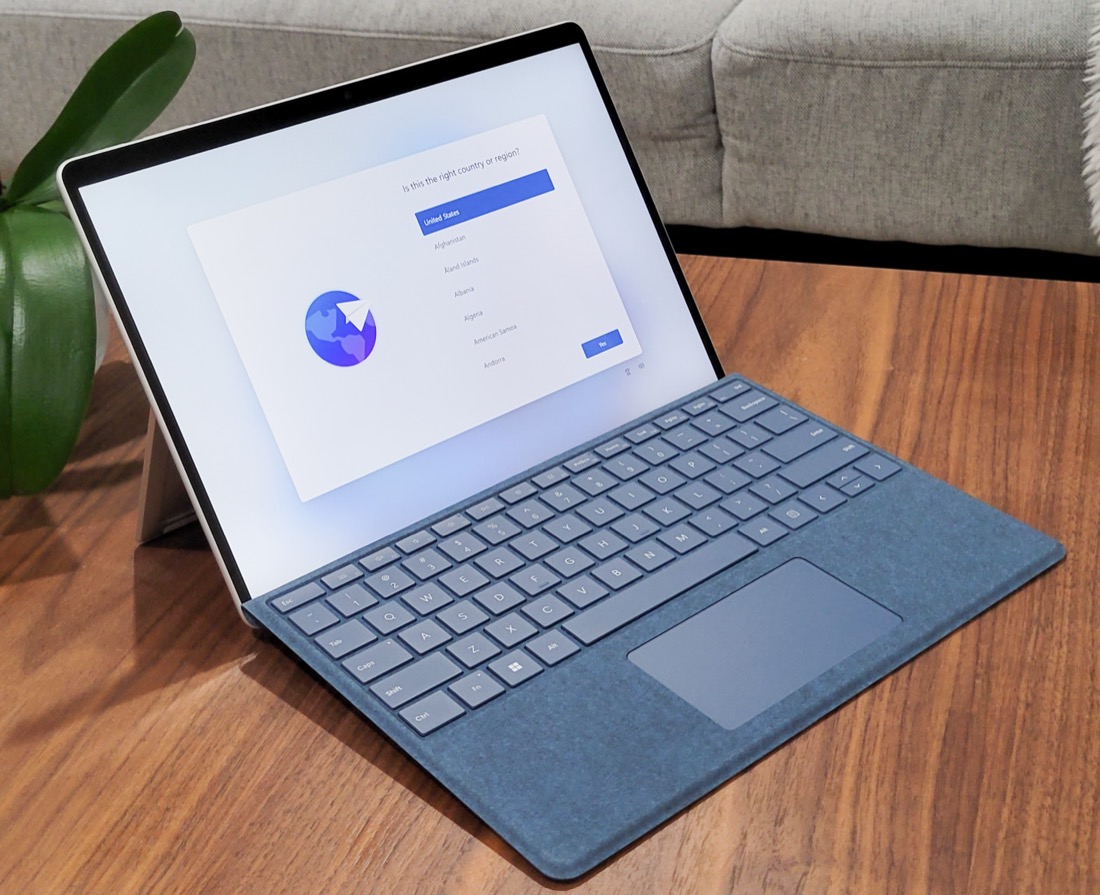
| 3 | Surface Pro 9 | 13″ LCD, 120Hz | Surface Pen | Windows power users | $$$ | ★★★★½ 4.5 | Check price |
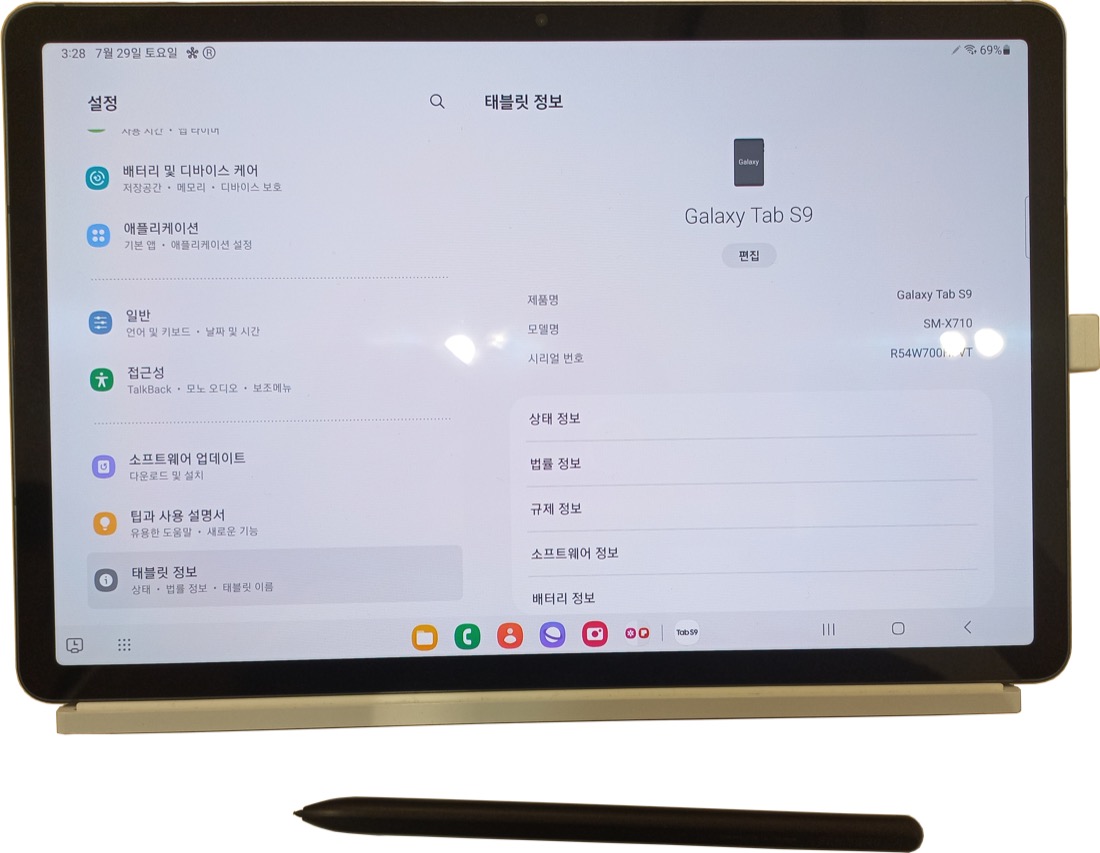
| 4 | Galaxy Tab S9 | 11″ AMOLED | S Pen included | Best Android | $$$ | ★★★★½ 4.6 | Check price |
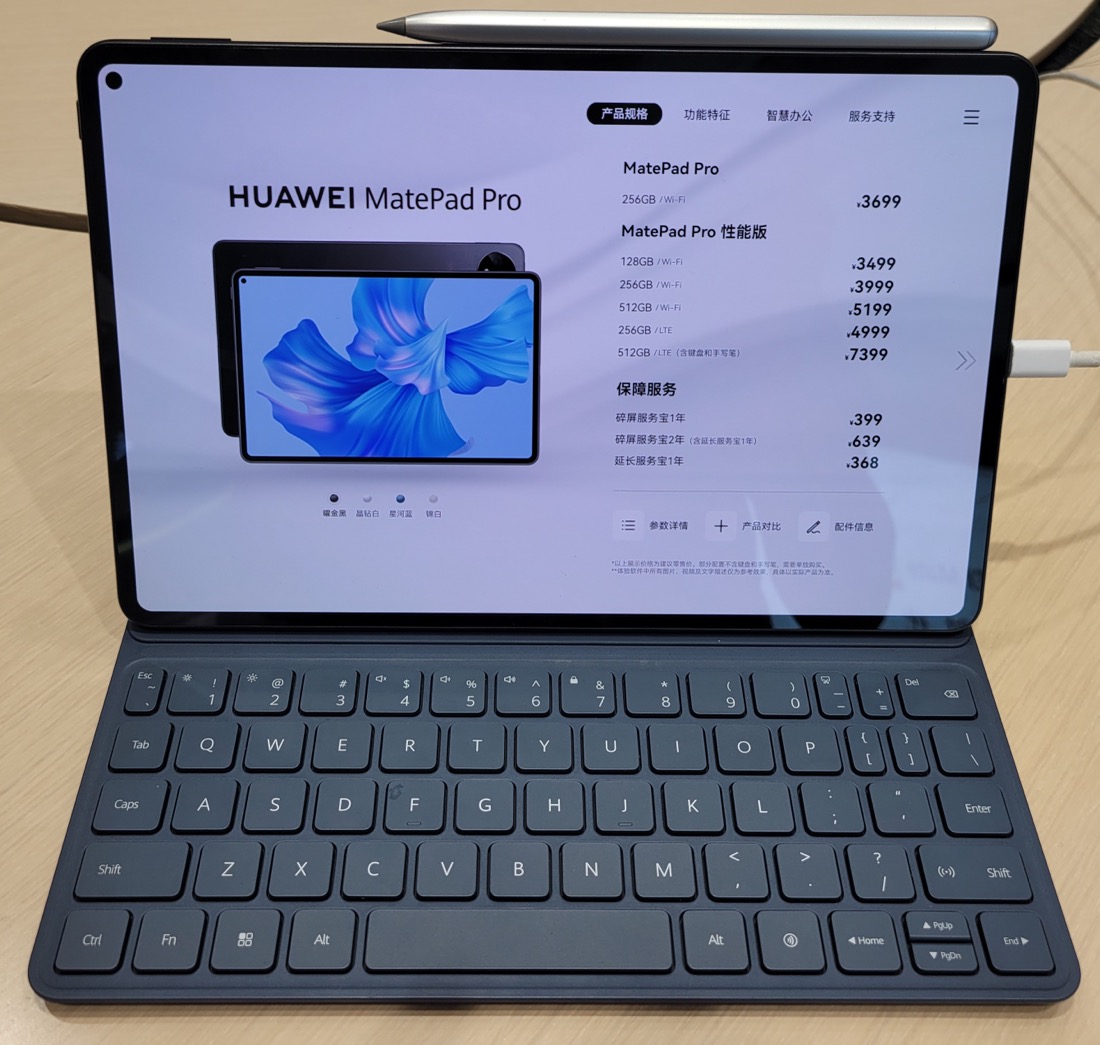
| 5 | Huawei MatePad Pro | 11″ OLED | M-Pencil | Best value | $$ | ★★★★ 4.3 | Check price |
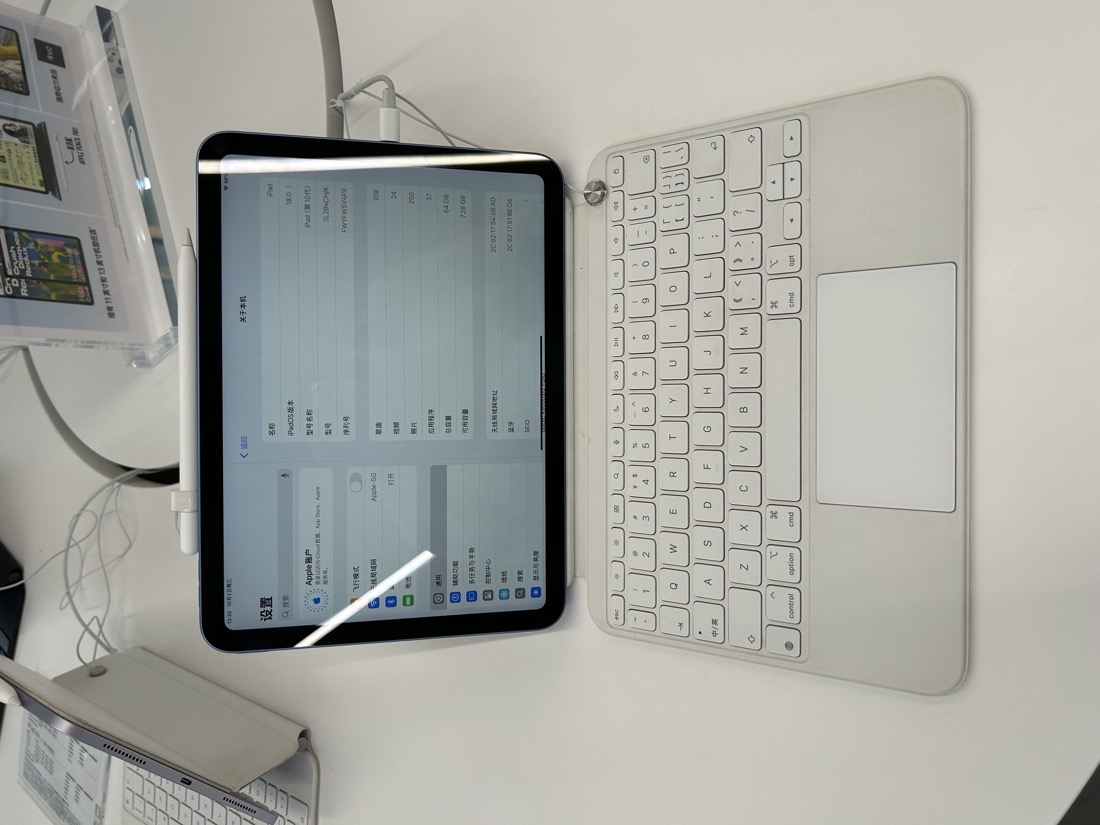
| 6 | iPad (10th gen) | 10.9″ LCD | Pencil (USB-C) | Best budget | $ | ★★★★ 4.4 | Check price |
Detailed reviews
1. Apple iPad Air (M2)
Best for: Anyone who wants the fastest, most flexible all-round PDF tablet.
- M2 chip handles huge, image-heavy PDFs without lag
- Apple Pencil Pro: near-zero latency, tilt & pressure for natural ink
- Runs every major PDF app — GoodNotes, PDF Expert, Adobe
- 11″ and 13″ sizes; laminated screen feels like writing on the page
Pros
- Fastest stylus experience
- Best app ecosystem
- Great resale value
Cons
- Pencil sold separately
- 60Hz screen (not 120Hz)
2. reMarkable 2
Best for: Deep, distraction-free reading and handwritten markup.
- Paper-like E-ink surface — the most natural writing feel here
- No apps, no notifications: pure reading and note-taking
- Marker (stylus) included; weeks of battery life
- Incredibly thin and light to hold for hours
Pros
- Easiest on the eyes
- Zero distractions
- Pen included
Cons
- No colour
- Slower refresh
- Subscription for cloud sync
3. Microsoft Surface Pro 9
Best for: Power users who want a full desktop PDF workflow on a tablet.
- Runs full Windows — Adobe Acrobat Pro, anything you need
- 13″ 120Hz display: smooth scrolling through long documents
- Surface Slim Pen 2 with haptic feedback when writing
- Doubles as a laptop with the Type Cover keyboard
Pros
- Real desktop apps
- Big 120Hz screen
- Laptop replacement
Cons
- Pen + keyboard cost extra
- Heavier than an iPad
4. Samsung Galaxy Tab S9
Best for: Android users who want a flagship screen and a pen in the box.
- Gorgeous 11″ AMOLED — deep blacks, great for reading at night
- S Pen included free, with low latency and tilt support
- Samsung Notes + any Android PDF app
- IP68 water resistance — rare on a tablet
Pros
- S Pen included
- Stunning AMOLED
- Water resistant
Cons
- Android PDF apps lag iPad's
- Premium price
5. Huawei MatePad Pro
Best for: A premium OLED markup tablet without the flagship price.
- Vivid 11″ OLED at a noticeably lower price than rivals
- M-Pencil glides smoothly for highlighting and notes
- Slim, light aluminium body
- Strong battery life for all-day reading
Pros
- Great screen for the money
- Light & premium build
Cons
- No Google Play Services
- Smaller app selection
6. Apple iPad (10th gen)
Best for: The cheapest way into the polished iPadOS PDF ecosystem.
- Same great PDF apps as the pricier iPads
- Bright 10.9″ Liquid Retina display
- Works with the Apple Pencil (USB-C) for markup
- Long software support — years of updates
Pros
- Most affordable iPad
- Full app ecosystem
- Light & portable
Cons
- Non-laminated screen
- USB-C Pencil lacks pressure
💡 Which one should you actually buy?
If you just want the best experience and don't mind paying for it, get the iPad Air (M2) — it does everything well. If your eyes hurt after long reading sessions, the reMarkable 2 is worth it for the paper-like calm. On a budget, the iPad (10th gen) gives you 90% of the experience for far less. Already in the Windows or Samsung world? The Surface Pro 9 and Galaxy Tab S9 slot right in.
How to choose a tablet for annotating PDFs
Annotating PDFs is a very specific job, and the "best tablet" for it isn't always the most expensive or the most powerful. It's the one whose screen, stylus and software match how you actually read and mark up documents. Here's what matters most.
Screen type: E-ink vs LCD/OLED
This is the biggest decision. E-ink (like the reMarkable 2) looks like paper, produces no glare, and is dramatically easier on the eyes for long reading and handwriting. The trade-offs are no colour and a slower refresh. LCD/OLED screens (iPad, Galaxy Tab, Surface) are fast, bright and full-colour — ideal for image-heavy PDFs, forms and anything you scroll quickly — but they're more tiring over a multi-hour reading marathon.
Stylus latency and pressure
For signing and handwritten notes, latency (the lag between your pen and the ink) is what makes writing feel natural or frustrating. Apple Pencil Pro and Samsung's S Pen are the gold standard. Pressure and tilt sensitivity matter if you want your signature or highlights to look organic rather than uniform.
The PDF app ecosystem
A tablet is only as good as the apps it runs. iPadOS has the deepest selection (GoodNotes, PDF Expert, Notability, Adobe). Windows on the Surface runs full desktop Acrobat. Android is solid but a step behind. And remember: you don't always need a paid app — a free browser tool like RaptorPDF lets you highlight, add text, draw and sign PDFs straight from the tablet's browser, with no install and no file upload.
Battery and weight
If you read for hours, a light tablet you can hold one-handed (reMarkable, iPad Air) beats a heavier 13″ slab. E-ink devices last for weeks; LCD tablets last a long day. Match the device to your reading posture.
Cost-per-use math
A $599 iPad Air sounds like a lot until you spread it across daily use over three or four years — it works out to a few cents a day, while replacing reams of printed contracts, textbooks and forms. If you're going paperless, the tablet often pays for itself in printing and filing costs alone.
Do you even need a dedicated PDF app?
For most everyday tasks — highlighting a contract, adding a comment, dropping in a signature, merging two files — you don't. Open RaptorPDF in your tablet's browser and you can do all of it free, with your files never leaving your device. Save the paid apps for heavy, daily professional workflows.
Frequently asked questions
What is the best tablet for annotating PDFs?
For most people the iPad Air (M2) with Apple Pencil Pro is the best all-round choice — fast screen, low-latency stylus and the widest selection of PDF apps. If you want a paper-like, distraction-free experience, the reMarkable 2 is the best e-ink option.
Can you sign PDFs on a tablet?
Yes. Any tablet with a stylus lets you draw a handwritten signature directly onto a PDF. You can also add a reusable signature field with a free browser tool like RaptorPDF — no app install required.
Is an e-ink tablet better than an iPad for PDFs?
E-ink tablets like the reMarkable 2 are easier on the eyes and better for long, focused reading and handwriting, but they're slower and have no colour. An iPad is faster, shows colour and runs full PDF apps, but is more tiring for marathon reading.
Do I need a separate app to annotate PDFs on a tablet?
Not necessarily. Many tablets include a basic markup tool, and you can use a free browser-based editor such as RaptorPDF to highlight, add text, draw and sign PDFs without installing anything or uploading your files to a server.
Marked it up on your tablet? Now edit it free.
Once you've annotated, sign, merge, split or compress your PDF right in your browser with RaptorPDF — no uploads, no signup, completely free.
Open RaptorPDF →