Guide · 6 min read
A4 vs US Letter: why your PDF prints wrong (and how to fix it)
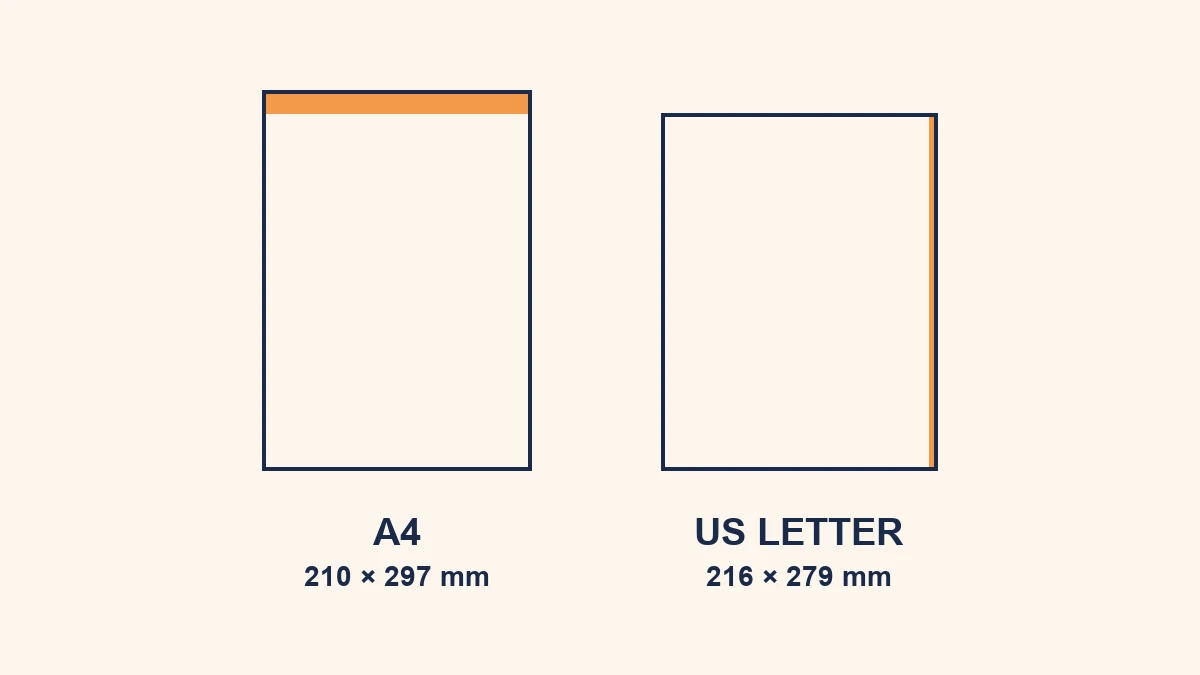
You send a document that looks perfect on screen, and it comes out of the printer with the footer clipped, the margins shifted, or a mysterious extra blank page. Nine times out of ten, the culprit is a quiet mismatch between two paper sizes that look almost identical: A4 and US Letter. They're so close that nothing looks wrong until paper is involved — which is exactly why the problem is so common and so confusing.
Here's what's actually different between them, why that small difference causes real printing problems, and the clean way to convert.
The actual difference
| Size | Millimetres | Inches | Used in |
|---|---|---|---|
| A4 | 210 × 297 mm | 8.27 × 11.69 in | Most of the world |
| US Letter | 216 × 279 mm | 8.5 × 11 in | US & Canada |
Read those two rows and the pattern jumps out: Letter is a bit wider, A4 is noticeably taller. The width differs by about 6 mm and the height by about 18 mm. On a screen, where the page just scales to fit the window, you'll never notice. On paper, where the sheet has fixed edges, those millimetres decide whether your content fits.
Why a tiny difference causes big problems
When a PDF's page size doesn't match the paper loaded in the printer, the printer (or the print dialog) has to make a decision, and none of the options are invisible:
- Scale to fit. The page is shrunk slightly so it fits the other size. Everything still appears, but every margin shifts and text gets marginally smaller — noticeable on forms and letterheads where alignment matters.
- Print at actual size. The page keeps its dimensions, so the extra height of an A4 document printed on Letter gets clipped at the bottom — hello, missing footer. In the other direction you get extra white space.
- Add a page. If content spills past the shorter sheet, it can flow onto an unexpected blank or half-full extra page.
The quick test: if your printout looks almost right but the margins are off or the bottom is cut, it's an A4/Letter mismatch nine times out of ten — not a printer fault.
How to fix it
Option 1: match the document to the paper (best for repeat printing)
If you'll print this document again, the durable fix is to set the PDF's page size to match the paper you print on. Use a resize tool to convert the whole file to A4 or Letter, and it will print correctly every time. RaptorPDF does this in your browser with no upload; a fit mode keeps your content centred and scaled to the new page.
Option 2: fix it at the print dialog (best for a one-off)
If you just need one clean copy now, open the print dialog and look for "Fit to page", "Scale to fit" or a paper-size dropdown. Choosing the paper you actually have and enabling fit-to-page usually rescues a single print without changing the file.
Option 3: choose the right size when you create the PDF
Best of all, avoid the mismatch at the source. If you're exporting from Word, Google Docs or a design app, set the page size to match your reader's region before you export — A4 for most of the world, Letter for the US and Canada.
Which one should you use?
There's no universally "correct" choice — it's about your audience. If you're in the US or Canada, or sending to someone there, Letter is the safe default. Everywhere else, A4. When in doubt about an international recipient, ask, or send A4, which is the more widely expected standard globally. The goal is simply that the document's size matches the paper it will land on.
Need to switch a PDF between A4 and Letter? Resize it in your browser — no upload, no signup to start.
Resize a PDFFrequently asked questions
What is the difference between A4 and US Letter?
A4 is 210 × 297 mm (about 8.27 × 11.69 in). US Letter is 8.5 × 11 in (about 216 × 279 mm). Letter is slightly wider and A4 is noticeably taller — close enough to look identical on screen but different enough to cause margin and cut-off problems in print.
Why does my PDF print with cut-off edges?
Usually because the document's page size doesn't match the paper in the printer. An A4 document sent to a Letter printer (or vice versa) either gets scaled — shifting margins — or clipped at the edges. Matching the page size to the paper, or choosing "fit to page", fixes it.
How do I convert a PDF from A4 to Letter?
Use a resize tool: open the PDF, choose the Letter preset (or A4 the other way), and download. RaptorPDF's resize tool does this in your browser with no upload, and a fit mode keeps content centred and correctly scaled.
Should I use A4 or Letter?
Match your audience. A4 is standard in most of the world; US Letter is standard in the US and Canada. When sending to a different region, use their standard size to avoid printing surprises.