How to Merge Multiple PDFs Using a Free Editor Tool (2026)
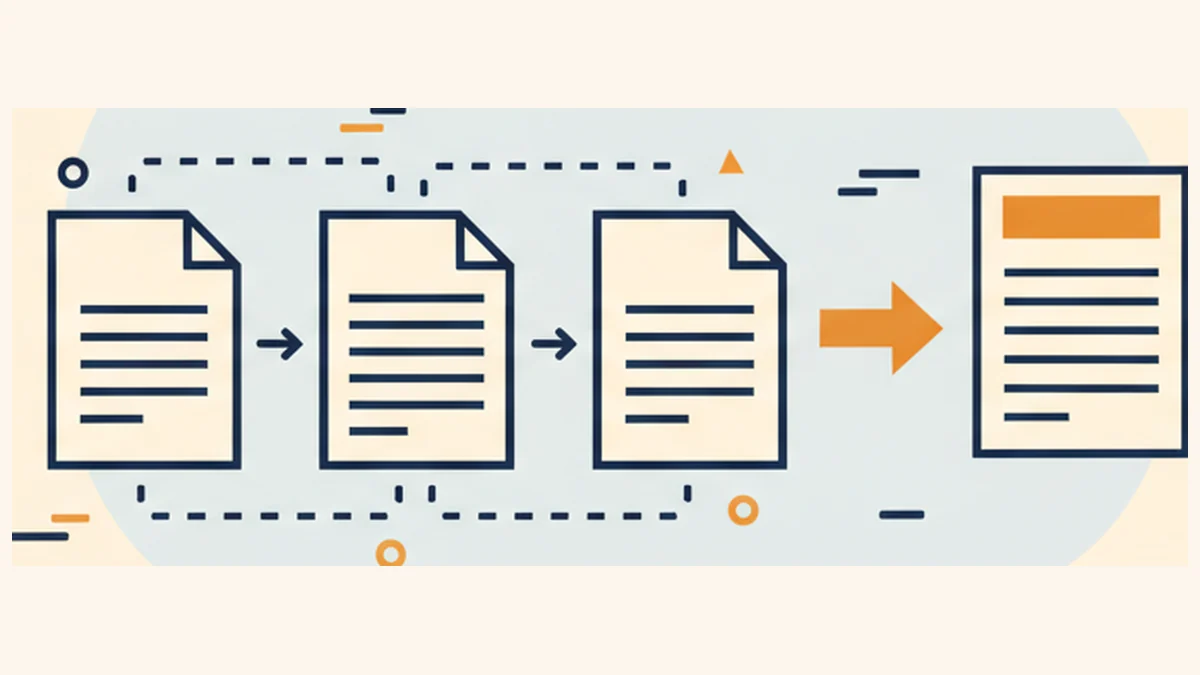
To merge multiple PDF files, use RaptorPDF's free online merge tool — upload your PDFs, drag to reorder pages, click Merge, and download the combined file. No account needed, no watermarks, and your files are processed in your browser so they never upload to a server. This guide also covers merging PDFs on Mac with Preview and other free methods.
In This Guide
Merge Multiple PDFs Online — Fastest Free Method
The easiest way to merge PDFs on any device is with an online tool that requires no installation:
1 Open the Merge Tool
Go to RaptorPDF's merge tool in any browser. No sign-up required.
2 Upload Your PDFs
Click to upload or drag-and-drop all the PDF files you want to combine. You can add multiple files at once.
3 Arrange the Order
Drag files or pages to reorder them. The order you see is the order they'll appear in the merged PDF.
4 Merge and Download
Click Merge PDF and your combined document downloads instantly. No watermarks, no waiting.
Merge PDFs Free — No Account Required
Combine unlimited PDF files. Files stay private — processed in your browser.
Merge PDFs NowMerge PDFs on Mac Using Preview (Built-In)
- Open the first PDF in Preview
- Go to View > Thumbnails to show the page panel
- Open the second PDF in a separate Preview window
- Drag the thumbnail pages from the second PDF into the first PDF's thumbnail panel
- Position them where you want them to appear
- Go to File > Export as PDF to save the merged file
Merge PDFs on Windows
Windows doesn't have a built-in PDF merge tool, but these free options work well:
- RaptorPDF online — works in any browser, including Microsoft Edge
- PDF24 Creator — free desktop app for Windows with a merge feature
- Microsoft Word — Insert PDFs as objects and save as PDF (limited quality)
Merge PDFs on iPhone and Android
Open Safari (iPhone) or Chrome (Android) and go to raptorpdf.com. The merge tool works on mobile browsers — upload your PDFs, arrange them, and download the combined file.
Tips for Better PDF Merging
- Compress first if files are large — Merging large PDFs can create very large output files. Use RaptorPDF's compress tool first to reduce individual file sizes.
- Check page orientation — If some PDFs are portrait and others landscape, the merged file will mix orientations. Standardize before merging if needed.
- Lossless merging — A good merge tool doesn't re-render content. If image quality looks different after merging, the tool may be compressing during merge.
- Preserve bookmarks — Some tools preserve PDF bookmarks from source files; others don't. Adobe Acrobat Pro is best for preserving complex bookmarks.
Frequently Asked Questions
How do I merge multiple PDF files for free?
Use RaptorPDF's free merge tool at raptorpdf.com. Upload your PDFs, arrange the order, click Merge, and download. No account, no watermarks.
Can I merge PDFs on Mac without Adobe?
Yes. Mac's built-in Preview app merges PDFs for free — open both in Preview, show thumbnails, and drag pages between documents. RaptorPDF in Safari is another free option.
Does merging PDFs reduce quality?
No — proper PDF merging is lossless. The files are combined without re-rendering. Quality reduction only happens if the tool applies compression during the merge process.
How many PDFs can I merge at once?
RaptorPDF's free tier supports files up to 25MB each with no limit on the number of files per merge. Pro tier supports up to 300MB per file.
Can I reorder pages when merging PDFs?
Yes. RaptorPDF's merge tool lets you drag-and-drop to reorder files and pages before merging.
How do I merge PDFs on Mac without software?
Use Preview (built-in on Mac) — no extra software needed. Or use RaptorPDF in Safari for a browser-based option that also requires no installation.
Related Resources
- Merge PDF Tool — Free online PDF merger
- Merge PDFs Without Uploading — Privacy-focused guide
- Merge PDFs Without Losing Quality
- How to Split PDFs — Reverse of merging