
How to Merge PDF Files Without Losing Quality
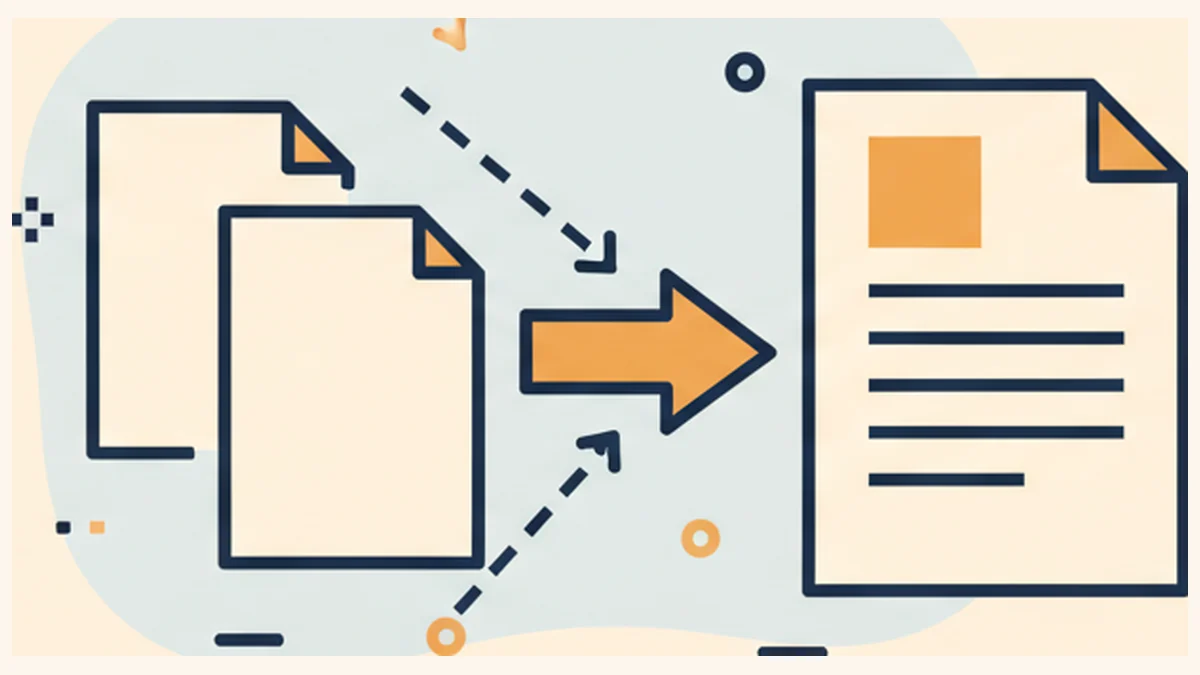
Merging is one of the few PDF operations that is genuinely lossless by default, so the framing of this question is slightly wrong. A correct merger does not touch your image data at all. What you need to know is which tools and settings break that, and the answer is narrower and more specific than the usual list of worries about colour profiles.
Why a proper merge cannot lose quality
A PDF page is a content stream plus a set of resources: the fonts it uses, the images it draws, the colour spaces it references. A merger built on a real PDF library copies those objects across into a new document unchanged. The image bytes that were in your source file are the same image bytes in the output. Nothing is decoded, resampled or re-encoded, so there is no mechanism by which quality could be lost. Text stays as text, vector line art stays vector, and a 600 dpi scan of a signature is still 600 dpi afterwards.
That is what our merge tool does, along with split, delete pages, reorder and rotate. Those five operations share the same code path and all of them copy the original page objects. It is also what any competent desktop or server merger does. If you are using one of those, you can stop worrying about image compression, font substitution and colour shifts, because none of them are happening.
The three things that actually cause degradation
Printing to PDF instead of merging. The classic mistake. Opening several PDFs and printing them to a new PDF re-renders every page through a print pipeline, which rasterises or re-encodes everything and usually flattens transparency. The output looks slightly soft and is often larger. If your merged file came out worse, this is the most likely cause.
A compression step bundled into the merge. Some tools compress by default on the way out, which is a separate operation wearing the merge's clothes. If a merger has a quality slider, it is not purely merging. Ours keeps compression as a distinct tool for exactly this reason, and that tool works by rasterising pages to JPEG, so it is not something you want applied silently.
Normalising page sizes. This is the one nobody warns about and it is the interesting part of the problem. Read on.
The real problem with merging: page size, not quality
Take two ordinary documents. A4 is 595.28 by 841.89 points. US Letter is 612 by 792. They are not just different sizes, they are different shapes: A4's aspect ratio is about 1.414, Letter's about 1.294. A4 is narrower and noticeably taller.
A PDF is perfectly happy to contain both. Every page carries its own dimensions, so a merged file can alternate between them and every reader will display it correctly, each page at its own size. On screen you may not even notice. The trouble starts at a printer or a print shop, where a mixed-size document either produces alternating margins or triggers the printer's own fit-to-page scaling, which shrinks some pages by a few percent and leaves others alone. A bound document where the margins change every few pages looks careless in a way that is hard to diagnose after the fact.
So you have a decision to make, and it is a real trade-off rather than a setting to get right:
Keep original sizes, or normalise
Keeping original page sizes is lossless. Pages are copied untouched and the document is mixed-size. This is our default, and it is correct whenever the merged file is for reading on a screen, for archiving, or for sending to someone else to handle.
Normalising to one size is not lossless, and it is worth knowing exactly why. To place an A4 page onto a Letter sheet, the tool has to render that page and draw the result. In our editor, turning off "Keep original page sizes" rasterises each page at twice its nominal resolution and re-embeds it as a JPEG at quality 0.92, then fits it to A4 portrait. The output is uniform and the text is no longer text. Choose this only when a consistent physical page size matters more than fidelity, such as a document going straight to a print shop.
The arithmetic on fitting, if you want to predict what you will get: fitting A4 content onto Letter while preserving shape scales it by the smaller of 612/595.28 and 792/841.89, which is 0.94. So the content shrinks by about 6% and you get white bands down both sides. Going the other way, Letter onto A4, the limiting factor is the width, and you get white bands top and bottom instead.
If you need a uniform size without rasterising, the right tool is a desktop application or a command-line utility that can rewrite each page's media box and scale the content stream. That is a different operation from redrawing a picture of the page, and no browser tool we know of does it.
Four things a merge does lose, which have nothing to do with quality
These are the ones that cause real problems, and none of them are about pixels.
- Form field name collisions. If you merge two copies of the same form, the output contains two fields with the same name. In the AcroForm model, fields sharing a name share a value, so typing into one fills the other. This is not a bug in the merger; it is how the format works. If you are bundling multiple copies of a form, fill and flatten each one first, then merge the flattened files.
- Bookmarks and the document outline. Most mergers do not rebuild the outline tree, so a merged file typically arrives with no bookmarks even though both sources had them. For a long combined document this is the loss you will actually feel. Acrobat and some desktop tools can preserve or regenerate them; browser tools generally cannot.
- Internal links and cross-references. A link pointing to page 12 of its own document now points to page 12 of a longer document, which is a different page. Tables of contents in the middle of a merged bundle usually stop working.
- Document metadata and tagging. Because the output is a new document with pages copied into it, the original information dictionary is not carried over: Title, Author and Keywords are dropped. Accessibility tagging and structure trees are also commonly lost, which matters if the document has to remain usable with a screen reader.
The metadata point cuts both ways. If you were hoping to keep the Title and Author, a merge will lose them and you will need to set them again in a tool that has a metadata editor, which ours does not. If you were hoping to strip an Author field that names whoever drafted the document, a merge does that incidentally.
Before you merge
- Remove password protection first. An encrypted PDF cannot be merged until it is decrypted, and you need the password to do it. If you do not have it, no tool can help.
- Fill and flatten any forms. This avoids the field name collision above, and means the values in the merged bundle cannot be altered.
- Check page sizes across the set. Most readers show the current page's dimensions in
document properties, and
pdfinfoorqpdfwill list them from a command line. If everything is already the same size, the whole normalisation question disappears. - Decide the order before you start, since reordering afterwards is another operation and, on a free plan with a daily allowance, another one counted.
On that last point: our operations are counted when you download, not when you use a tool. Merging four files, reordering the result and stamping page numbers before downloading is one operation against the free plan's three per day. Doing the same work as three separate downloads uses up your day. Free also caps files at 50 MB; Pro is $4.99 a month or $39.99 a year and raises that to 300 MB.
Where a browser merge is the wrong choice
We would rather say this than have you find it out with a frozen tab. A browser has to hold the entire
document in memory, several times over once pages are rendered for the page thumbnails. A handful of
ordinary documents is nothing. Twenty large scans is a different matter, and the failure mode is an
unresponsive or reloaded tab rather than a clear error message. On a phone the practical ceiling arrives
well below any plan's stated limit. For genuinely large merges, a desktop tool or qpdf on a
command line is both faster and more predictable, and qpdf --empty --pages a.pdf b.pdf -- out.pdf
is lossless in exactly the same way.
Checking the result
- Count the pages. The commonest merge error is a missing or duplicated document, not a quality problem.
- Select text on a page from each source file. If one source's pages have selectable text and another's do not, that source was a scan, which is worth knowing before you send the bundle.
- Check the page size on the first page of each source. This tells you immediately whether you have a mixed-size document.
- Open the bookmarks panel. If it is empty and you expected an outline, it was dropped.
- Only then look at image quality, and if anything looks soft, you did not merge, you printed.
Merge without re-rendering anything
Pages are copied, not redrawn, so the output is byte-for-byte as good as the sources. Nothing is uploaded. Keep "Keep original page sizes" on to stay lossless.
Open the merge toolThe short version
If your merged PDF looks worse than the originals, you almost certainly printed to PDF or let a compression step run. A real merge copies page objects and cannot degrade an image. The problems worth planning for are mixed page sizes, colliding form fields, lost bookmarks and broken internal links, and none of them show up when you zoom in to check the pixels.